Issue tracker integration
Gitember already knows Git. An issue tracker adds context around Git work: which ticket you are on, what the branch should be called, and whether the commit message should carry the issue key.
The integration layer is generic (IssueTracker). Jira Cloud / Data Center and
Linear are implemented. YouTrack, GitHub Issues, and GitLab Issues can plug in later
without changing the Git workflow.
Jira / Linear / YouTrack / GitHub Issues / GitLab Issues
                  │
                  ▼
          Gitember Integration
                  │
       ┌──────────┼──────────┐
       ▼          ▼          ▼
    Issue       Branch      Commit
   context     creation    message
                  │
                  ▼
             Git repository
Credentials and issue data stay on your machine. Gitember only talks to the tracker server you configure. Nothing is sent to a third-party AI or cloud unless you turn that on separately.
Configure a tracker
- Open the repository, then Repository → Project Settings → Integrations.
- Choose Jira or Linear in the Tracker combo.
- Check Enable.
- Fill in the tracker-specific fields (below), then Test Connection.
- Tick the Jira projects or Linear teams you work in.
- Optionally set Branch naming (
{type}/{key}-{slug}), Branch type (feature), Include issue key in commit message, and Add an issue comment when committing. - Click OK.
Tokens are stored with the same encryption as repository passwords (OS keychain /
MaskStringValueSerializer). They are not written to ~/.gitember/gitember2.json in plain text.
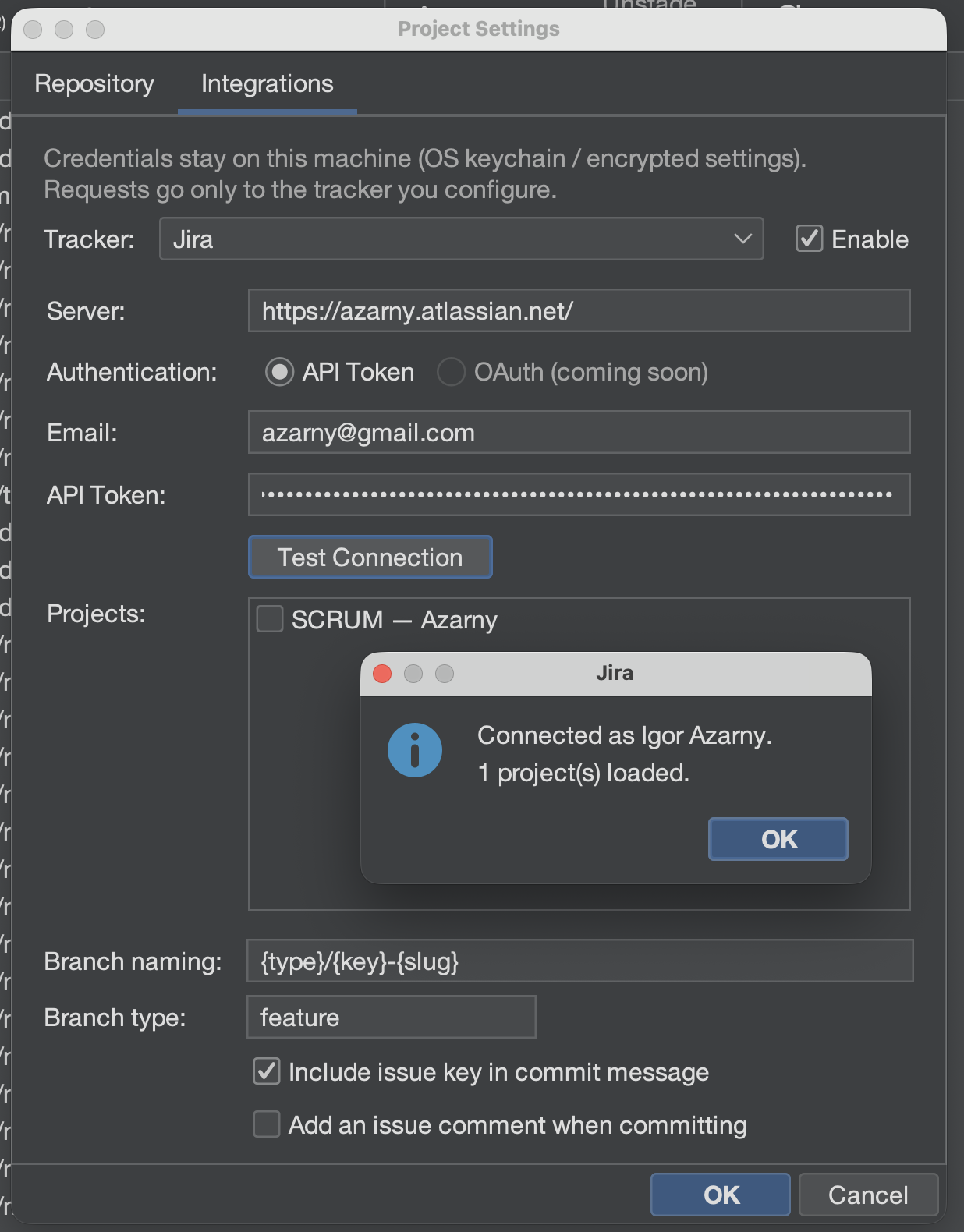
Jira
- Set Server to your site, for example
https://company.atlassian.net. - Leave API Token selected (OAuth is not available yet).
- Enter the Atlassian Email and an API token.
- Test Connection loads Jira projects.
Linear
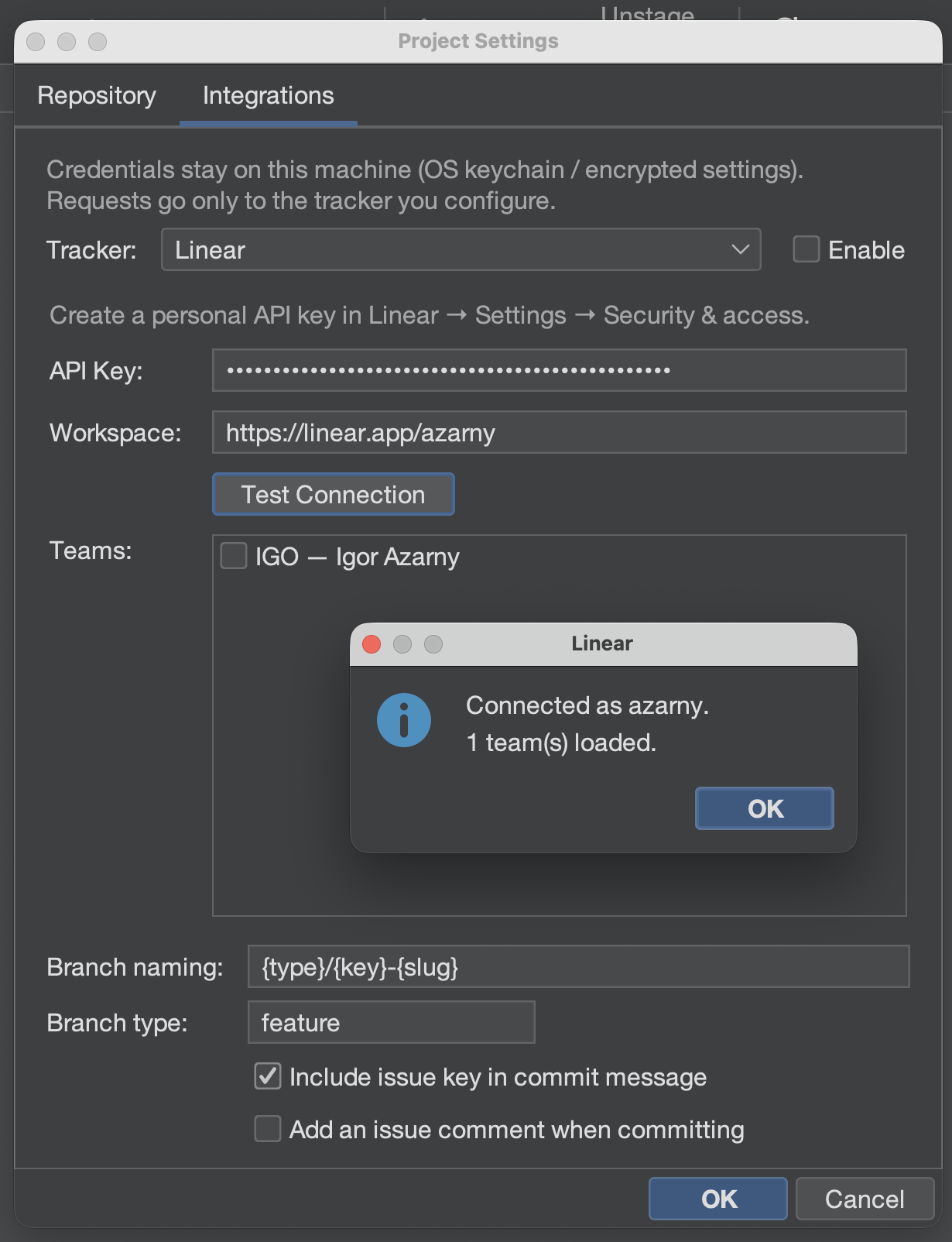
- Create a personal API key in Linear (Settings → Security & access).
- Paste it into API Key. Gitember talks only to
https://api.linear.app/graphql. - Test Connection fills Workspace (
https://linear.app/your-workspace) and loads teams.
Issue picker (commit)
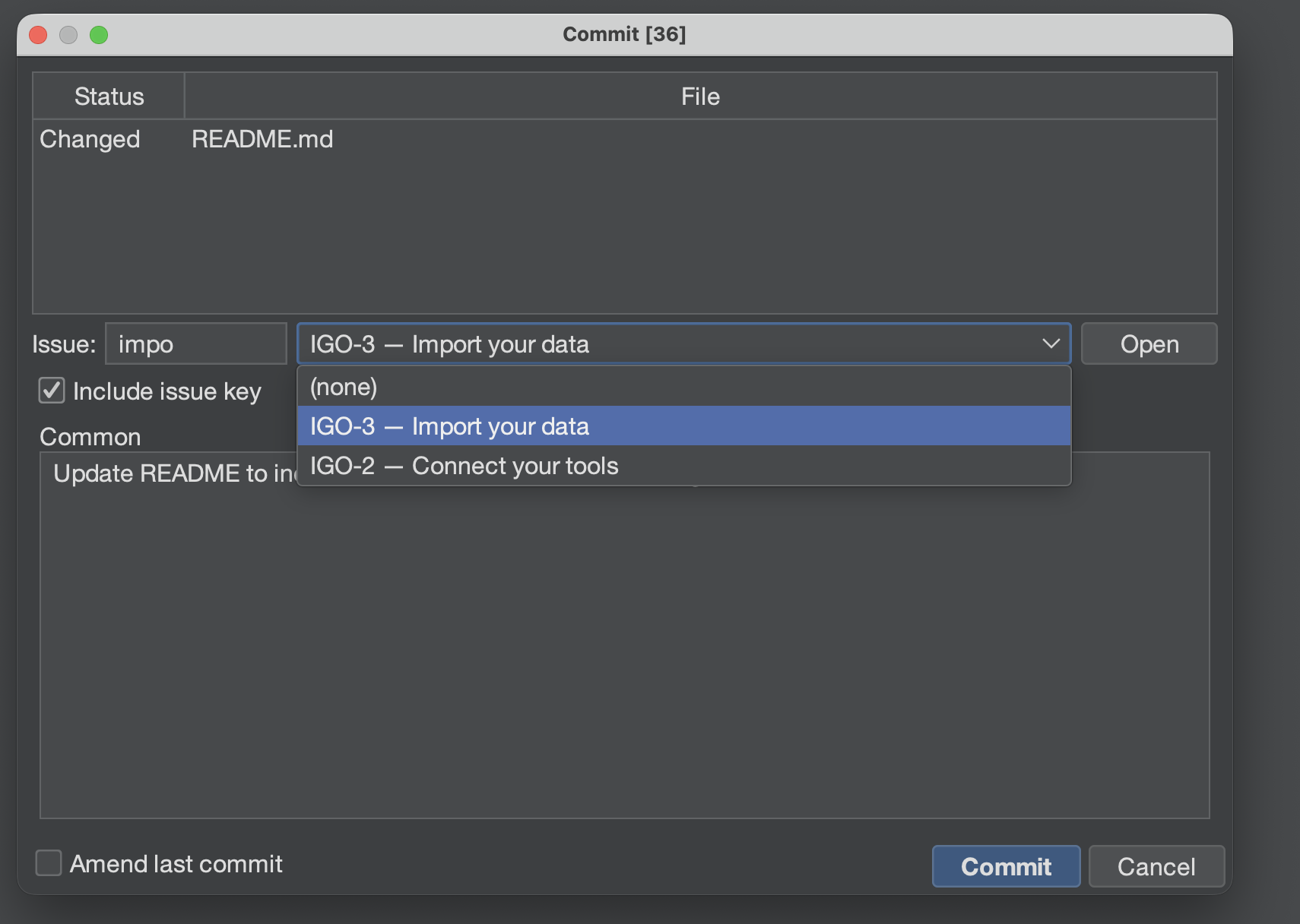
When a tracker is configured, the commit window shows an Issue combo:
- Search or pick an assigned open issue, for example
PAY-123 — Fix payment timeout. - Write the commit message as usual.
- Leave Include issue key checked if you want the key in the Git message.
Gitember then records:
PAY-123 Fix payment timeout in payment service
That is the same convention GitLab and other Git/Jira links use: keys in commit messages cross-reference development activity.
If the message is empty and an issue is selected, Gitember uses the issue title.
Branch from an issue
Branch → Create Branch (or the tree context menu) opens a dialog with the same issue picker when a tracker is configured.
Selecting PAY-123 — Fix payment timeout fills the name from the pattern, by default:
feature/PAY-123-fix-payment-timeout
Placeholders: {type} (the Branch type field), {key}, {slug} (title, lower-case, dashed).
Edit the name after that if you want a different local branch; Gitember will not overwrite
your typing.
Creating a local branch from a remote still presets the remote's short name and does not replace it when you pick an issue.
History
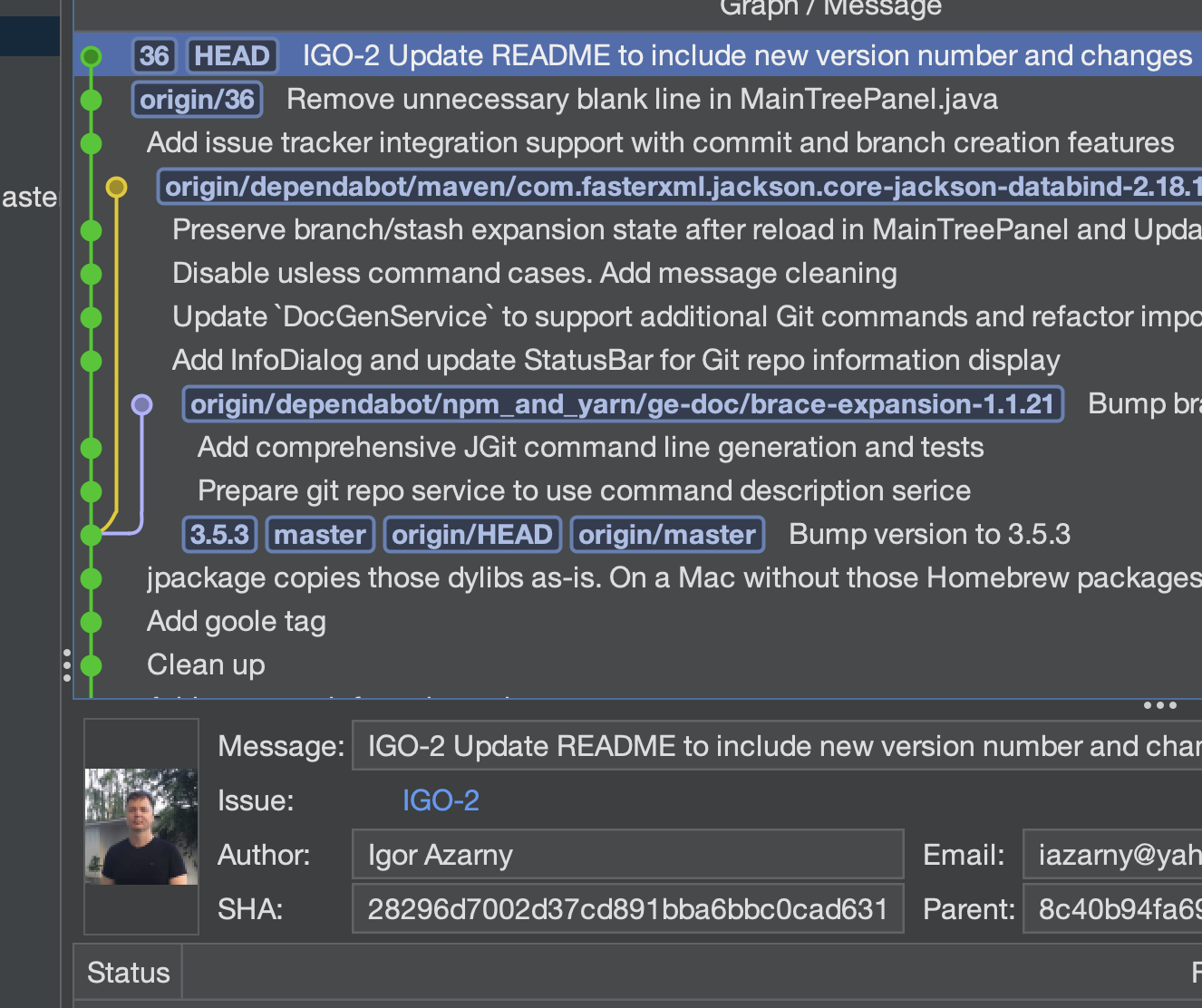
Commit details scan the message (and branch names on the commit) for keys such as PAY-123.
When a tracker is configured, the key is a link that opens the issue in the browser.
Optional issue comment
If Add an issue comment when committing is on, Gitember posts a short comment after a successful local commit (SHA, branch, message). A failed comment is logged only; the Git commit is never undone.
Privacy
- Tokens live on the project in Gitember settings, encrypted like other repository secrets.
- Issue search and comments go only to Jira or Linear as you configured them.
- The current issue is session state; it is not written to disk.