Git LFS
Git Large File Storage (LFS) keeps large binaries — images, videos, design files, datasets — out of the regular Git object store. Gitember stores a small pointer in the repository and transfers the real content over the Git LFS HTTPS API.
See also Git LFS and Git LFS documentation in the official project.
Detecting an LFS repository
When you open a repository, Gitember checks .gitattributes for filter=lfs and whether .git/lfs exists. If either is present, the project is treated as an LFS repository.
Open Repository → Git LFS → Manage LFS… to see the current status.
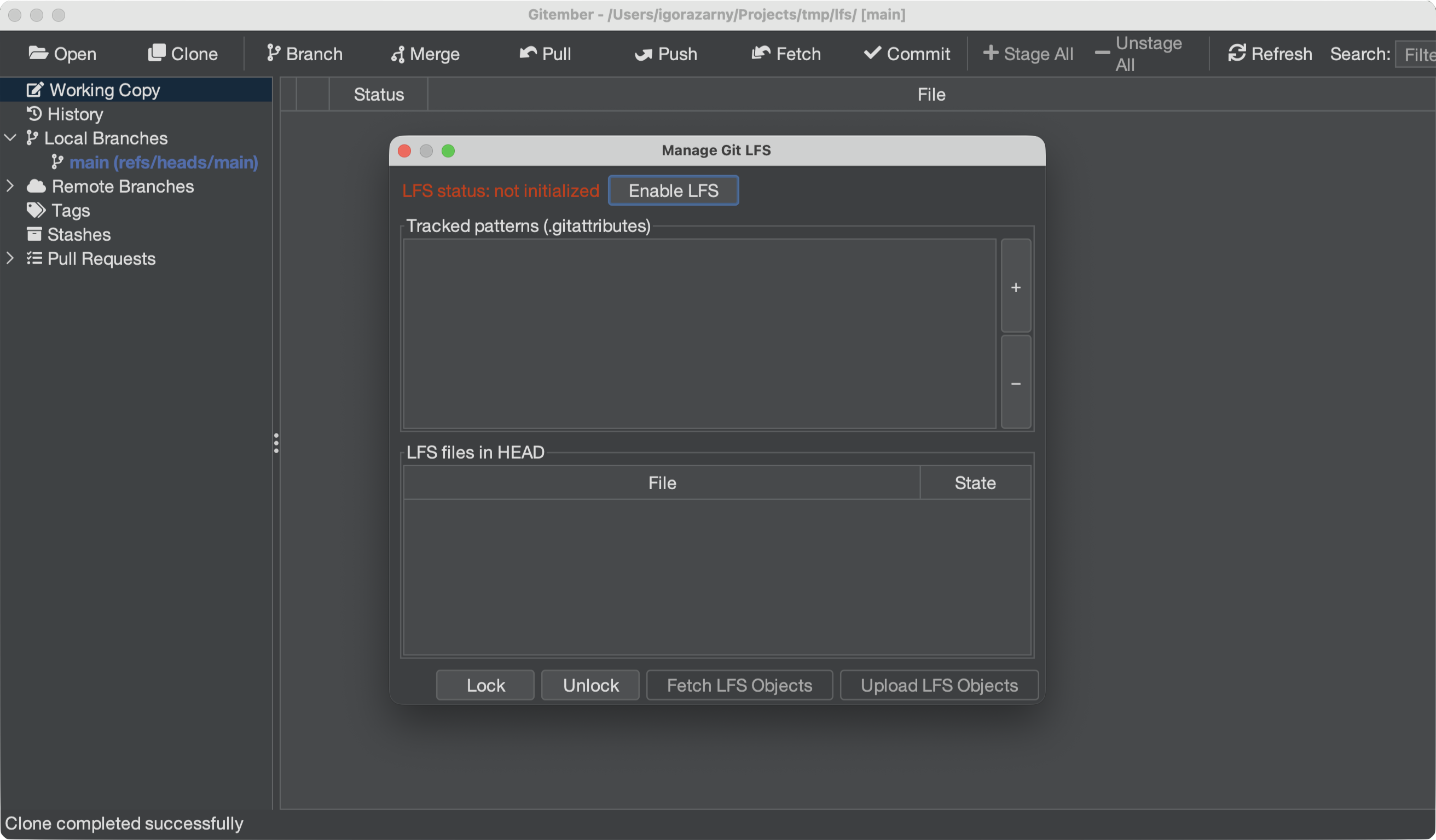
| Status | Meaning |
|---|---|
| ENABLED | Filters are configured and/or .git/lfs exists. Fetch, upload, lock, and pattern tracking are available. |
| not initialized | This repository is not using LFS yet. Click Enable LFS to set it up. |
The Working Copy file list also marks LFS paths (pointer only vs downloaded).
Enabling LFS
On a repository that does not have LFS yet:
- Open Repository → Git LFS → Manage LFS….
- Click Enable LFS.
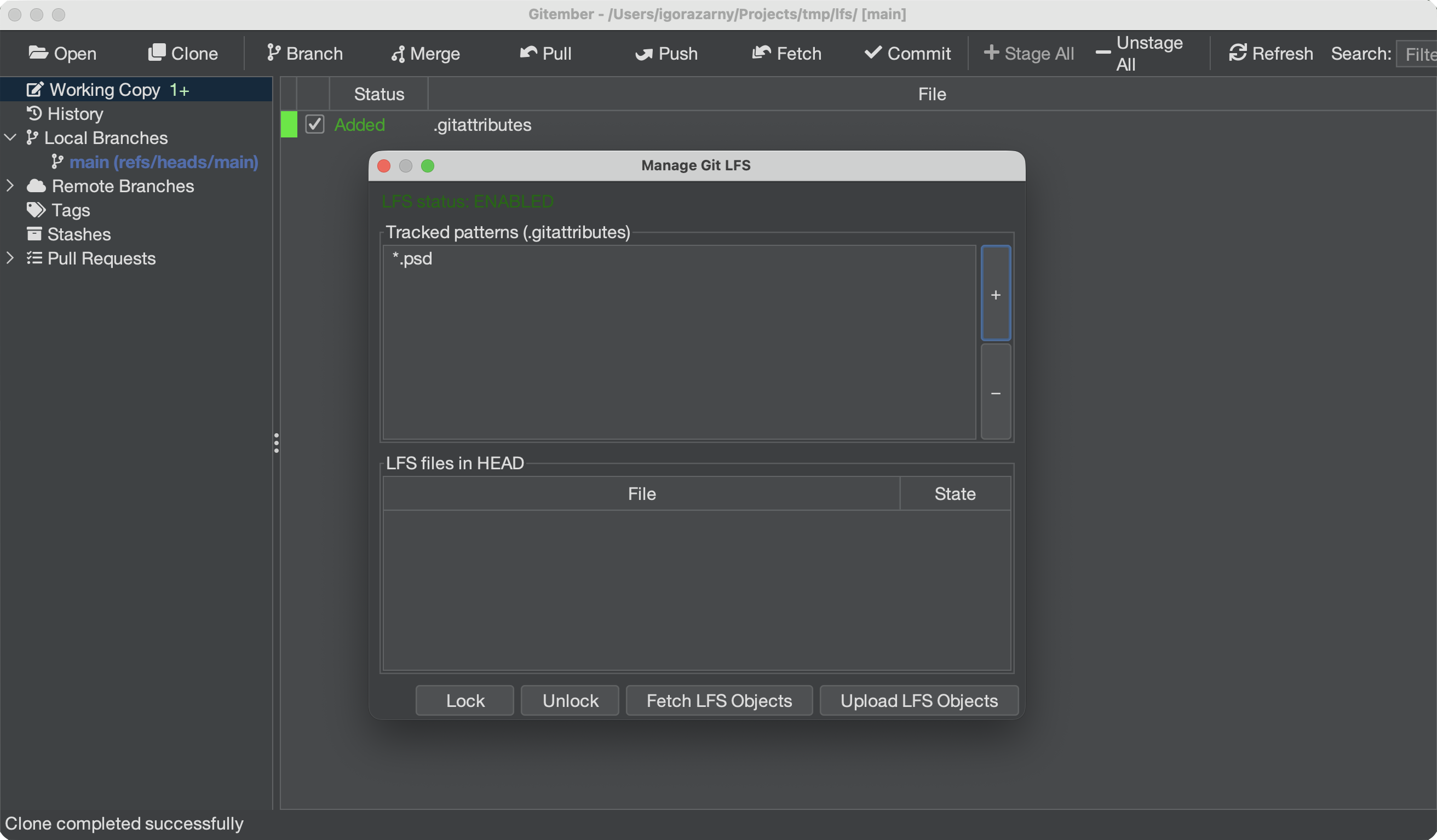
Gitember writes the built-in smudge/clean filters to .git/config and creates .git/lfs/tmp. It does not change .gitattributes until you track a pattern.
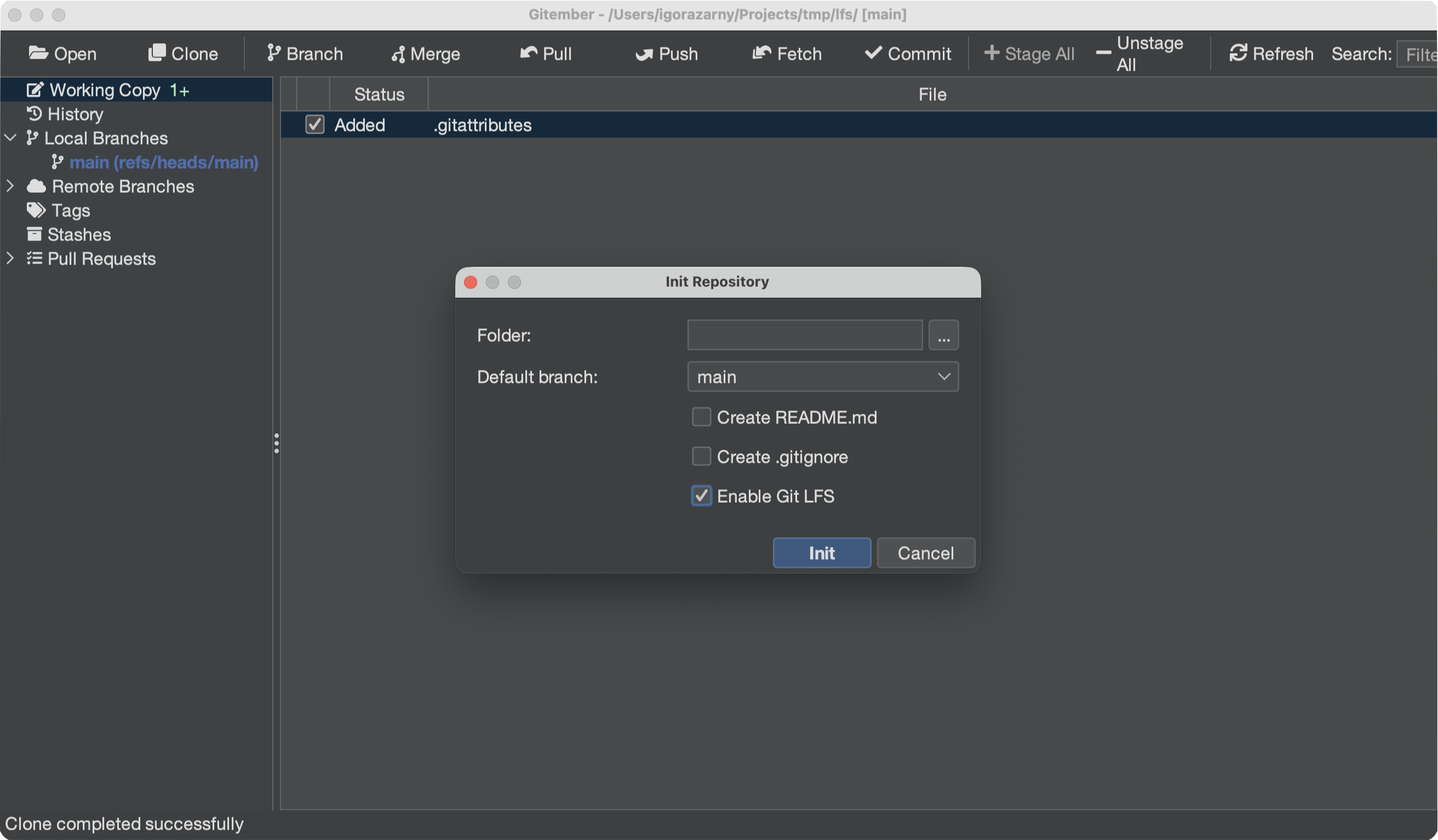
You can also enable LFS when you init a new repository (check Enable Git LFS in the Init dialog).
Tracking patterns
LFS only applies to paths that match a pattern in .gitattributes.
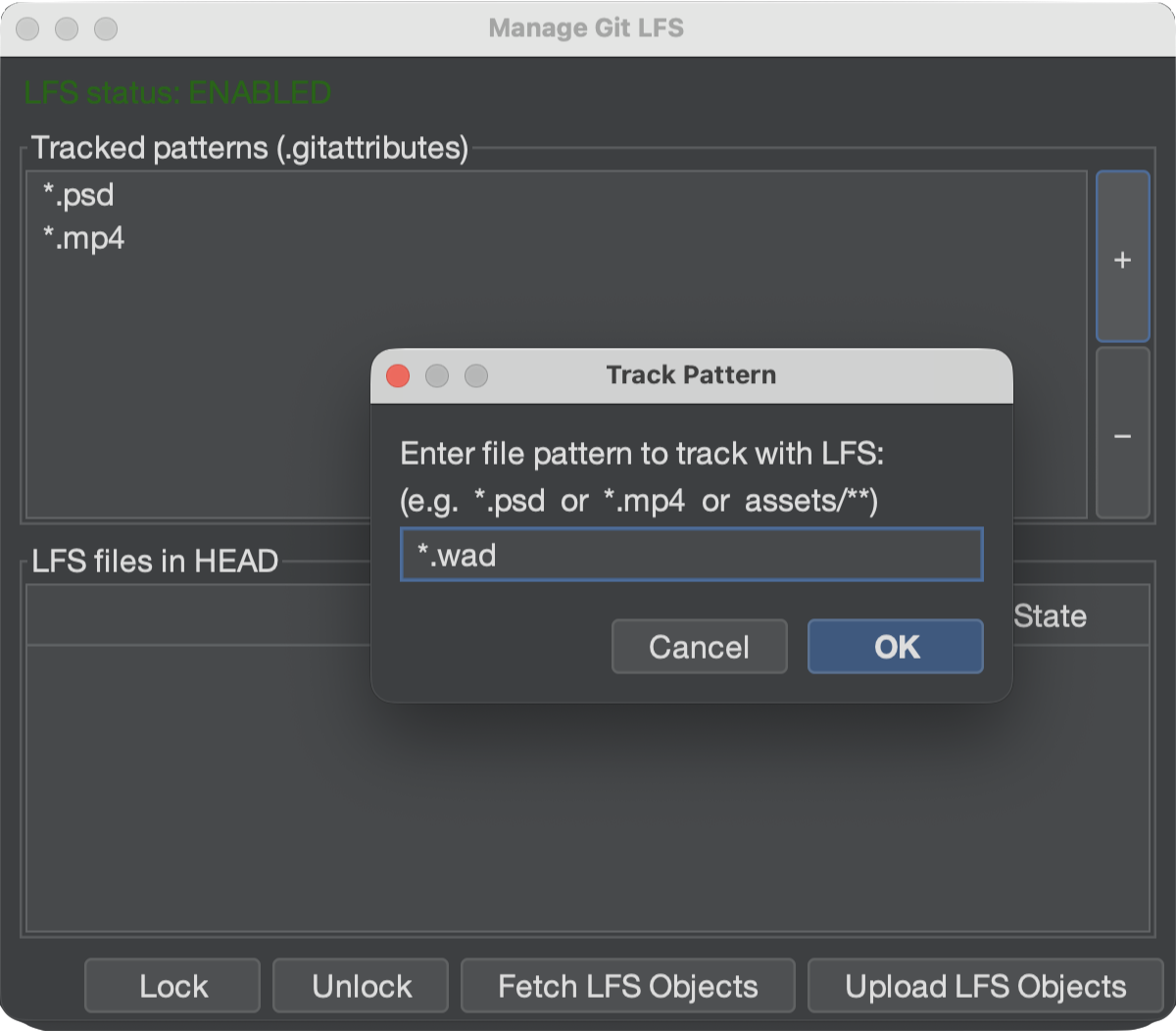
- Open Manage LFS….
- Click + and enter a pattern such as
*.psd,*.mp4, orassets/**. - Gitember appends
filter=lfs diff=lfs merge=lfs -textto.gitattributesand stages that file.
To stop tracking a pattern, select it in the list and click −.
After changing patterns, commit .gitattributes so other clones use the same rules.
Viewing LFS files
The LFS files in HEAD table lists pointers recorded on the current commit.
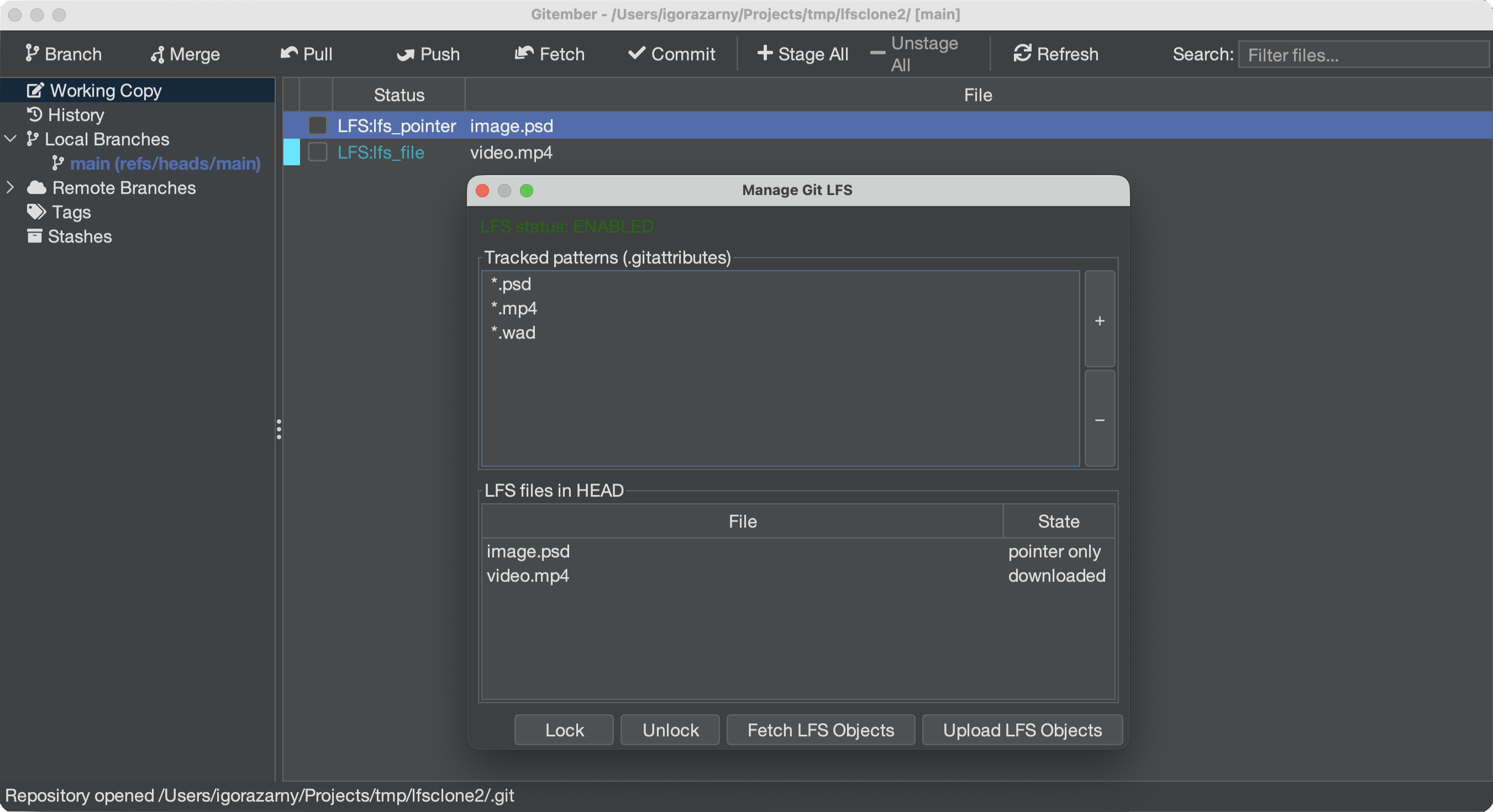
| Column | Description |
|---|---|
| File | Repository-relative path. |
| State | downloaded — the real object is in the working tree; pointer only — only the LFS pointer is present. |
Cloning an LFS repository
Use File → Clone as usual. Gitember registers its LFS filters on the clone so
later checkouts use the built-in smudge/clean drivers instead of an external git-lfs binary.
After clone, pointer files may still be stubs until you Fetch LFS Objects. Git LFS always transfers content over HTTPS, even when the Git remote is SSH — configure an access token or username/password if the LFS host requires it.
Downloading LFS files
After a clone, a shallow fetch, or a checkout that left pointer stubs:
- Open Repository → Git LFS → Fetch LFS Objects, or click Fetch LFS Objects in the Manage LFS dialog, to download every missing object.
- Or, in the Working Copy list, right-click a file whose status is LFS:lfs_pointer and choose Fetch LFS file to download that file only.
- Gitember writes the real content into the working tree and updates the status to LFS:lfs_file.
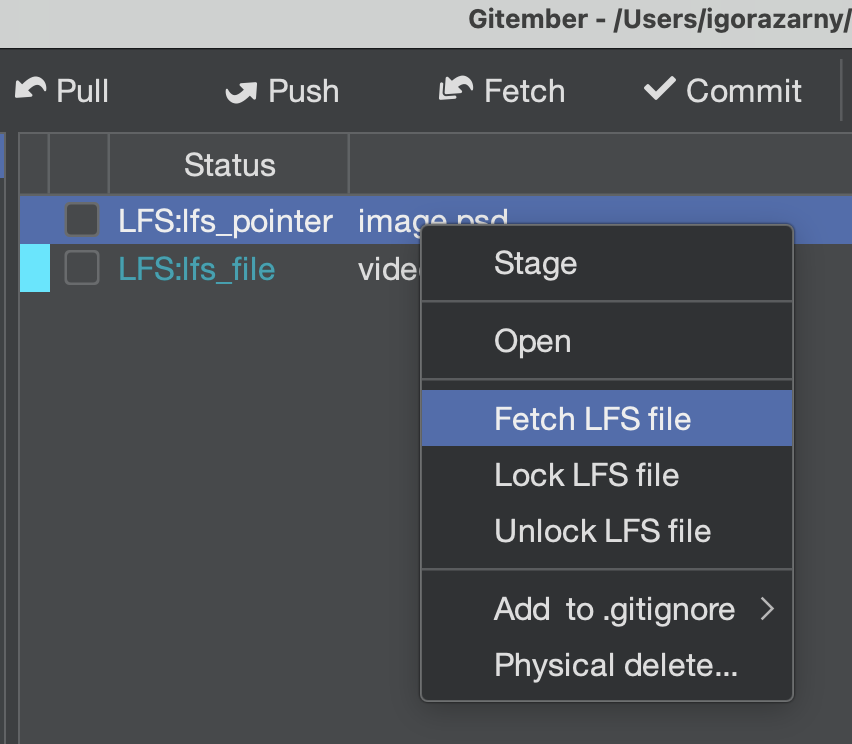
Progress is shown in the status bar. If authentication fails, Gitember explains that LFS uses HTTPS and offers to save credentials.
Uploading LFS files
Push already uploads LFS objects for the commits being pushed. You can also upload explicitly:
- Open Repository → Git LFS → Upload LFS Objects, or click Upload LFS Objects in the Manage LFS dialog.
- Local objects referenced by the current branch are sent via the Git LFS Batch API.
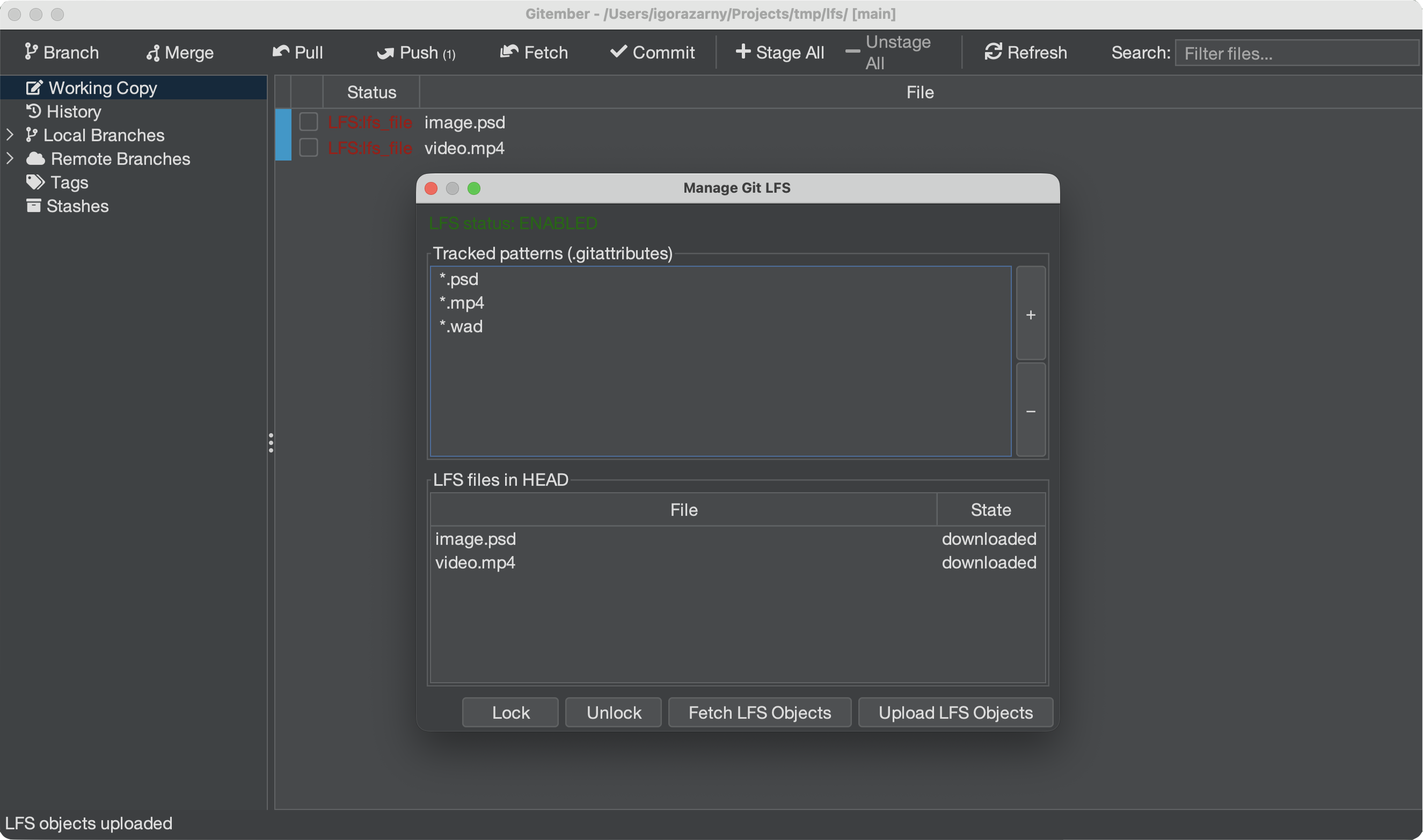
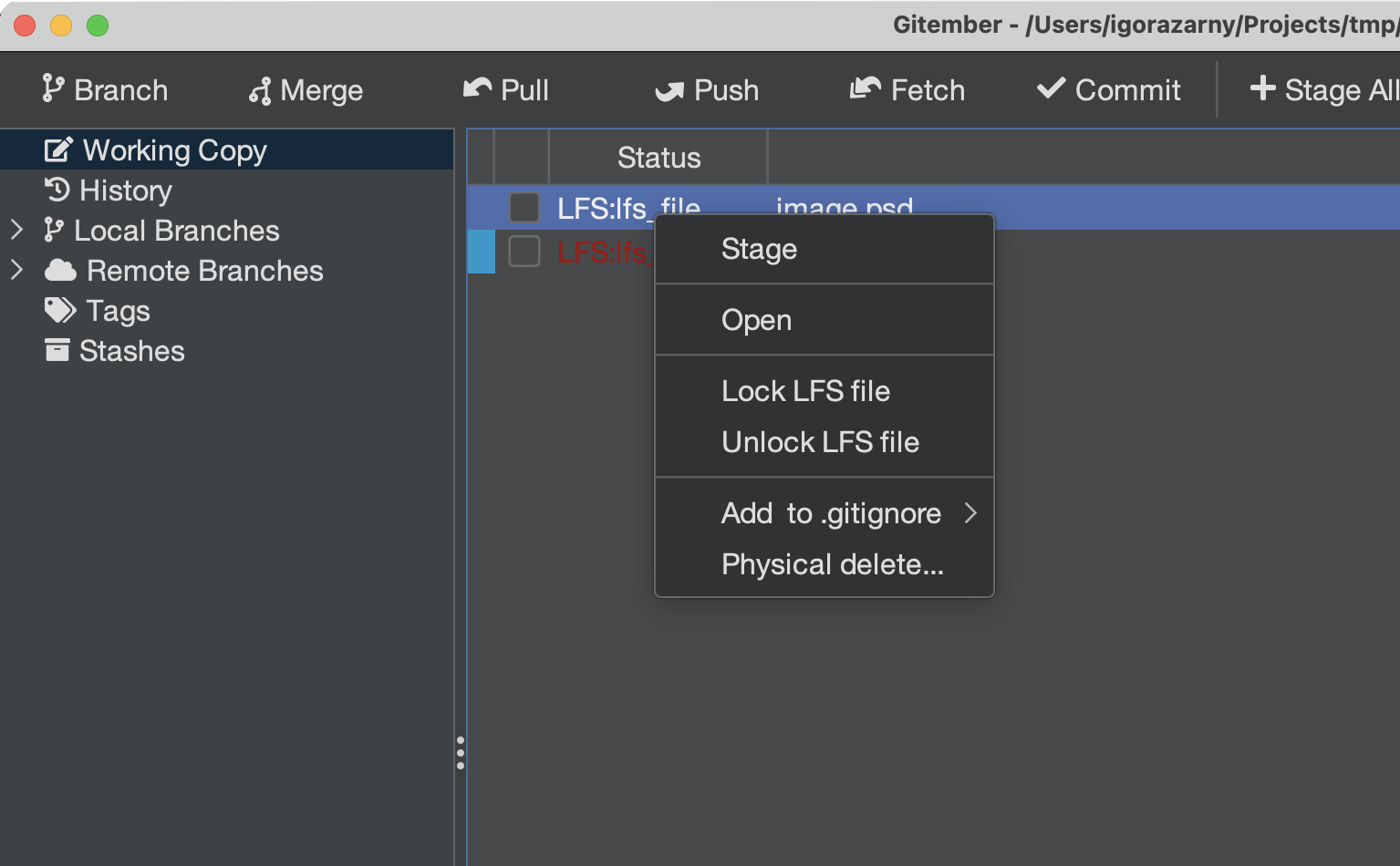
Upload and download require an HTTP(S) remote (or lfs.url). A file:// remote is not a Git LFS server — Gitember reports that clearly instead of failing with a generic network error.
Locking and unlocking files
File locking prevents two people from editing the same binary at once.
- In Manage LFS…, select a file in the table, then click Lock or Unlock.
- Or, in the Working Copy list, right-click an LFS file and choose Lock LFS file / Unlock LFS file.
Gitember calls the Git LFS locking API (/locks and /locks/{id}/unlock) using the current branch as the lock ref.
| Result | What it means |
|---|---|
| Lock created | The path is reserved for you on the remote. |
| Already locked | Someone else holds the lock — Gitember shows the server message. |
| No lock found | Unlock was requested for a path that is not locked. |
LFS diffs
For an LFS-tracked file, Diff with repository does not dump pointer text or binary data. Gitember compares the HEAD pointer with the working-tree pointer (or downloaded content) and shows oid and size.
Example summary:
LFS: assets/hero.psd
  HEAD     pointer  oid sha256:abc…  size 1234567
  Working  pointer  oid sha256:def…  size 2345678
  Size 1234567 → 2345678
If the working copy has already been smudged, the Working side is reported as downloaded content with its file size.
LFS errors
Gitember classifies LFS failures so the UI can show a useful message instead of a stack trace.
| Situation | What you see |
|---|---|
| No HTTP(S) remote | Warning that Git LFS needs an HTTP remote, not a local path. |
| 401 / 403 | Prompt to enter an access token or username/password (LFS is always HTTPS). |
| File already locked | Warning with the lock conflict from the server. |
| Nothing locked | Unlock reports that no lock exists for that path. |
| Server / network error | The HTTP status and server body, when available. |
Summary
| Action | How to trigger |
|---|---|
| See whether LFS is enabled | Repository → Git LFS → Manage LFS… |
| Enable LFS on an existing repo | Manage LFS → Enable LFS |
| Enable LFS on a new repo | File → Init → Enable Git LFS |
| Track / untrack patterns | Manage LFS → + / − |
| List LFS files | Manage LFS → LFS files in HEAD |
| Download objects | Repository → Git LFS → Fetch LFS Objects, Manage LFS, or Working Copy → Fetch LFS file |
| Upload objects | Repository → Git LFS → Upload LFS Objects |
| Lock / unlock a file | Manage LFS or Working Copy → right-click |
| Compare LFS versions | Working Copy → Diff with repository |