Three-Way Conflict Resolution
When a merge or pull results in conflicting changes, Gitember provides a built-in three-way merge editor that lets you review and resolve each conflict visually — without leaving the application.
Opening the Editor
- In the Working Copy tab, conflicted files are marked with a conflict icon.
- Right-click the conflicted file and choose Resolve conflict from the context menu.
- The three-way merge editor opens automatically.
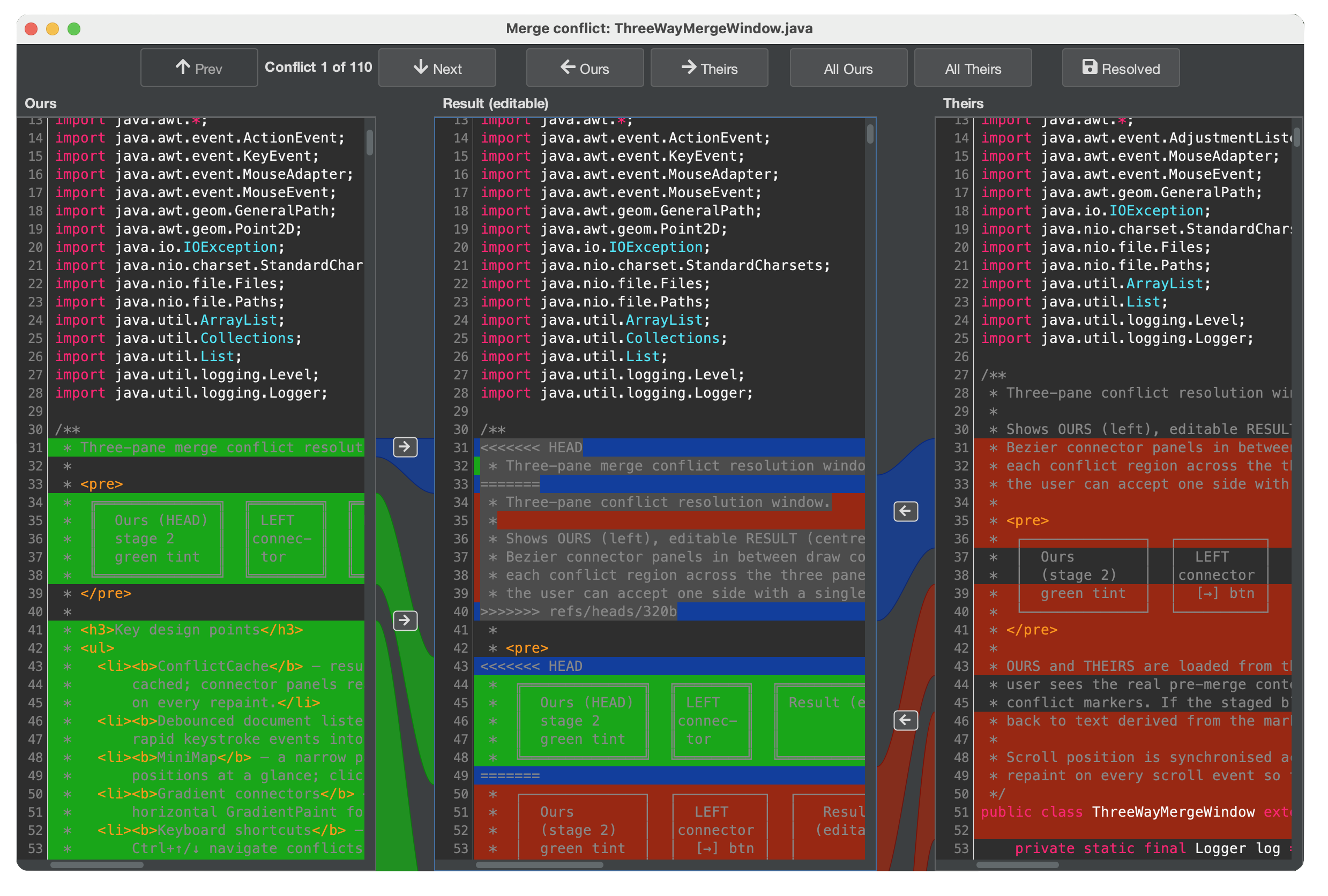
Layout
The editor is divided into three panes:
| Pane | Content |
|---|---|
| Ours (left) | Your local changes — the version on the current branch. |
| Result (centre) | The editable merge result that will be saved. |
| Theirs (right) | Incoming changes — the version being merged in. |
The connector panels between the panes highlight each conflicting block and draw curved lines connecting the corresponding regions in the adjacent panes.
Accepting Changes
Each conflict block has an arrow button in the connector panel:
- Click → (Ours → Result) to accept your local change for that block.
- Click ← (Theirs → Result) to accept the incoming change for that block.
You can also edit the Result pane directly to craft a custom resolution.
Use Prev and Next to navigate between conflict blocks.
Saving the Resolution
When all conflicts are resolved, click Resolved to save the file and mark it as resolved in Git. The file is removed from the conflicted state in the Working Copy tab and is ready to be staged and committed.
- You can accept changes block-by-block, mixing Ours and Theirs as needed.
- The Result pane is a full editor — you can type or paste any content.
- Use All Ours or All Theirs toolbar buttons to accept all blocks at once when one side is entirely correct.